6. Materials, waveguides and meshing
Now that we have a basic understanding of using NumBAT, this chapter provides detailed information on how to specify a large of range materials and waveguide designs.
We will return to more advanced examples/tutorials in the next chapter.
6.1. Materials
In order to calculate the modes of a structure we must specify the acoustic and optical properties of all constituent materials.
In NumBAT, this data is read in from human-readable .json files, which are stored in the directory <NumBAT>/backend/material_data.
These files not only provide the numerical values for optical and acoustic variables, but provide links to the origin of the data. Often they are taken from the literature and the naming convention allows users to select from different parameter values chosen by different authors for the same nominal material.
The intention of this arrangement is to create a library of materials that can serves as standard reference data within the research community. They also allow users to check the sensitivity of their results on particular parameters for a given material.
- At present, the library contains the following materials:
- Vacuum (or air)
Vacuum
- The chalcogenide glass Arsenic tri*sulfide
As2S3_2016_SmithAs2S3_2017_MorrisonAs2S3_2021_Poulton
- Fused silica
SiO2_2013_LaudeSiO2_2015_Van_LaerSiO2_2016_SmithSiO2_2021_SmithSiO2_smf28.jsonSiO2GeO2_smf28.json
- Silicon
Si_2012_RakichSi_2013_LaudeSi_2015_Van_LaerSi_2016_SmithSi_2021_PoultonSi_test_anisotropic
- Silicon nitride
Si3N4_2014_WolffSi3N4_2021_Steel
- Gallium arsenide
GaAs_2016_Smith
- Germanium
Ge_cubic_2014_Wolff
- Lithium niobate
LiNbO3_2021_SteelLiNbO3aniso_2021_Steel
Materials can easily be added to this library by copying any of these files as a template and
modifying the properties to suit. The Si_test_anisotropic file contains all the variables
that NumBAT is setup to read. We ask that stable parameters (particularly those used
for published results) be added to the NumBAT git repository using the same naming convention.
6.2. Waveguide Geometries
NumBAT encodes different waveguide structures through finite element meshes
constructed using the .geo language used by the open source tool Gmsh.
Most users will find they can construct all waveguides of interest using the
existing templates. However, new templates can be added by adding a new
.geo file to the <NumBAT>/backend/fortran/msh directory and making a
new subclass of the UserGeometryBase class in the
<NumBAT>/backend/msh/user_meshes.py file. This procedure is described in detail in User-defined waveguide geometries.
All the builtin examples below are
constructed in the same fashion in a parallel builtin_meshes.py file and
can be used as models for your own designs.
The following figures give some examples of how material types and physical
dimensions are represented in the mesh geometries. In particular, for each
structure template, they identify the interpretation of the dimensional
parameters (inc_a_x, slab_b_y, etc), material labels (material_a,
material_b etc), and the grid refinement parameters (lc_bkg,
lc_refine_1, lc_refine_2, etc). The captions for each structure also
identify the mesh geometry template files in the directory
<NumBAT>/backend/fortran/msh with filenames of the form
<prefix>_msh_template.geo which define the structures and can give ideas
for developing new structure files.
The NumBAT code for creating all these structures can be found in <NumBAT>/docs/source/images/make_meshfigs.py.
6.2.1. Single inclusion waveguides with surrounding medium
These structures consist of a single medium inclusion (mat_a) with a background material (mat_bkg).
The dimensions are set with inc_a_x and inc_a_y.

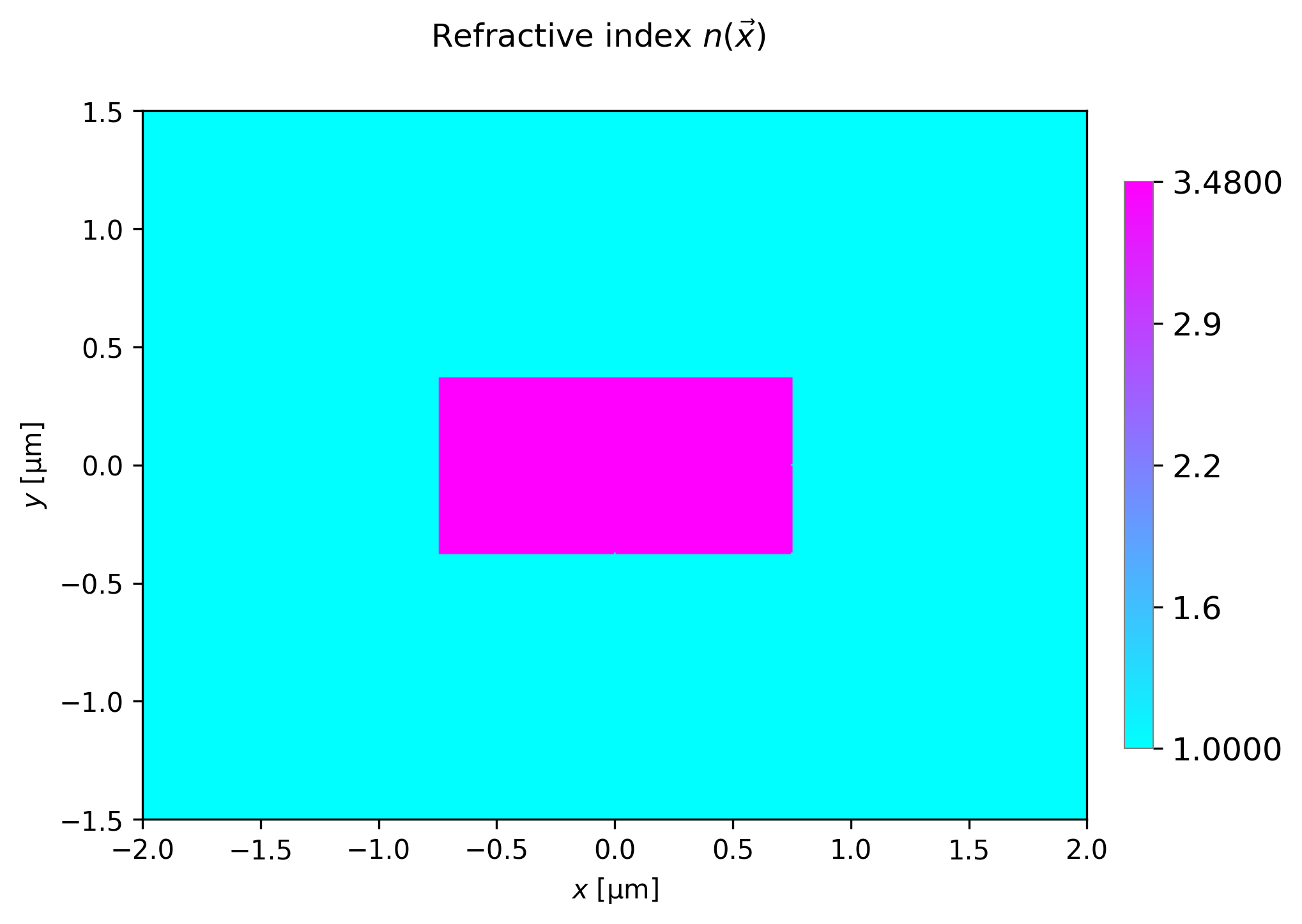
Rectangular waveguide using shape rectangular (template oneincl_msh).
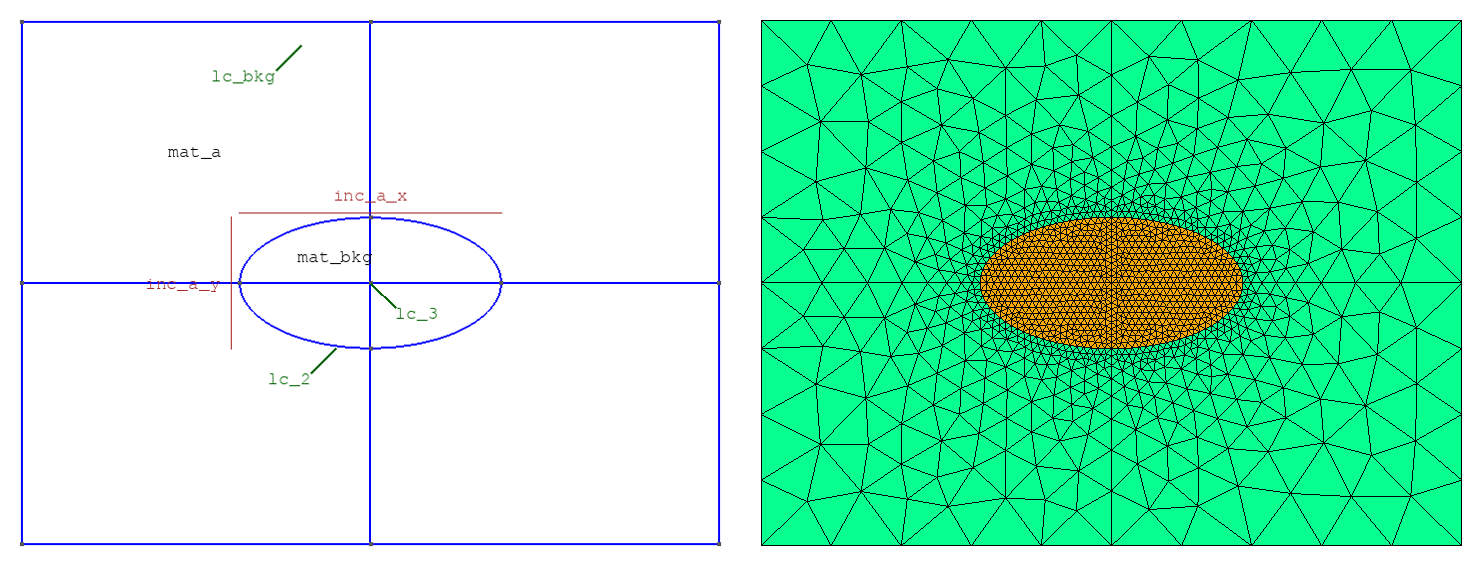
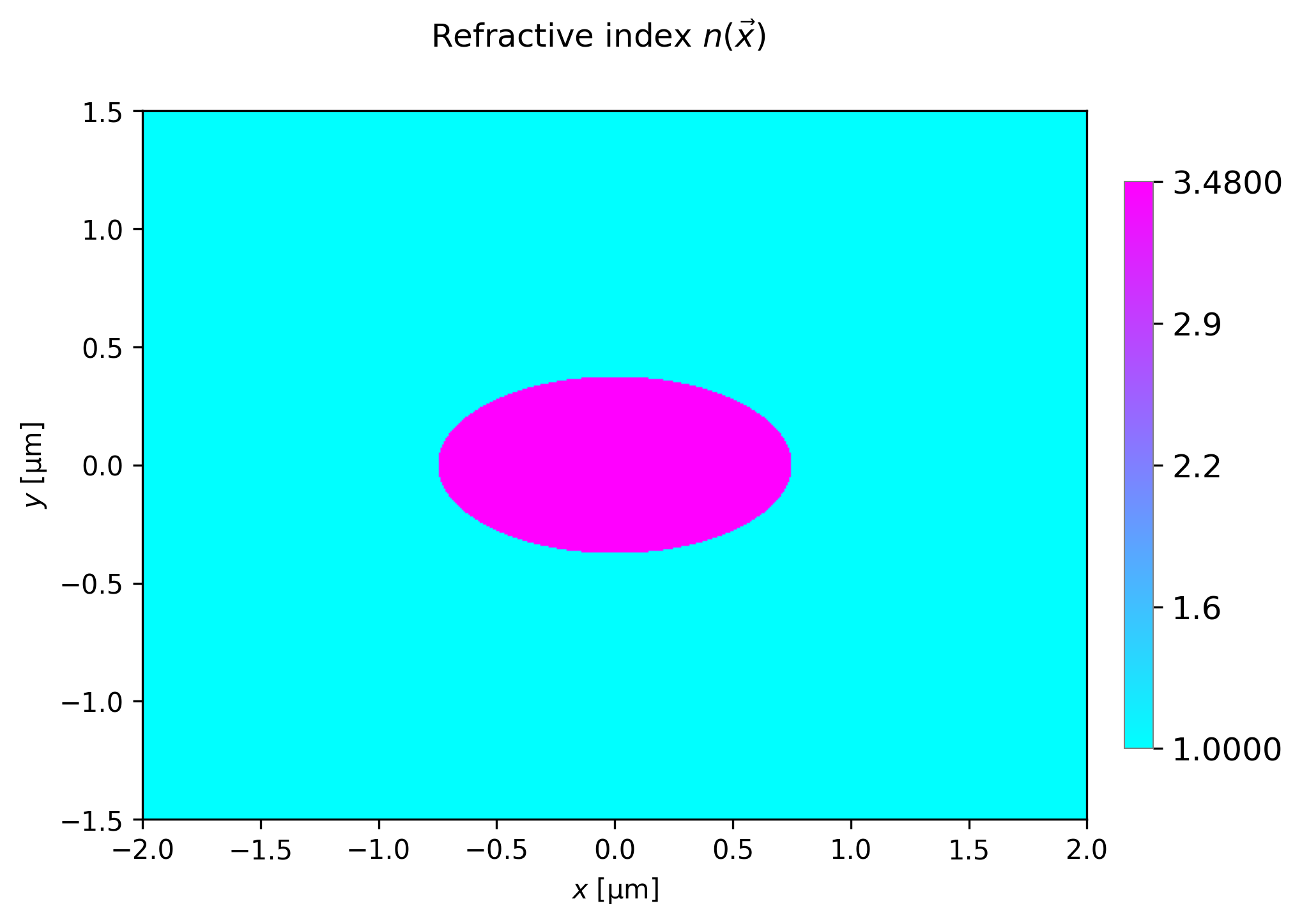
Elliptical waveguide using shape circular (template oneincl_msh).
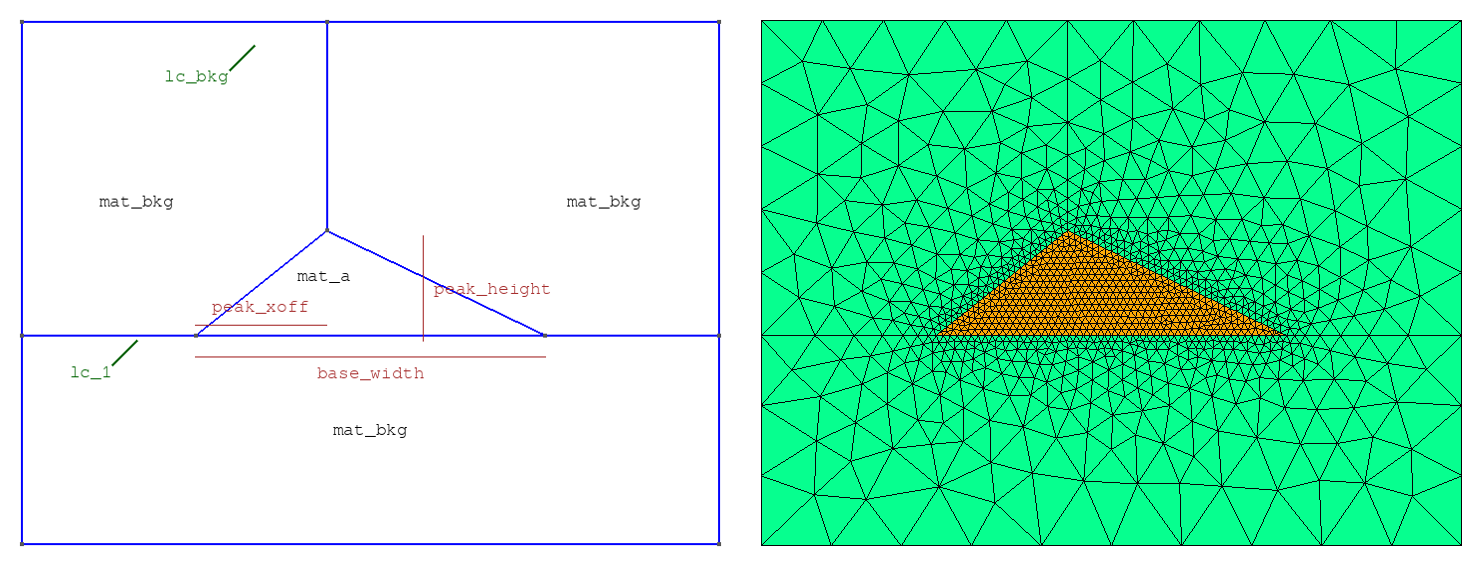

Triangular waveguide using shape triangular.
6.2.2. Double inclusion waveguides with surrounding medium
These structures consist of a pair of waveguides with a single common background material.
The dimensions are set by inc_a_x/inc_a_y and inc_b_x/inc_b_y. They are separated
horizontally by two_inc_sep and the right waveguide has a vertical offset of y_off.
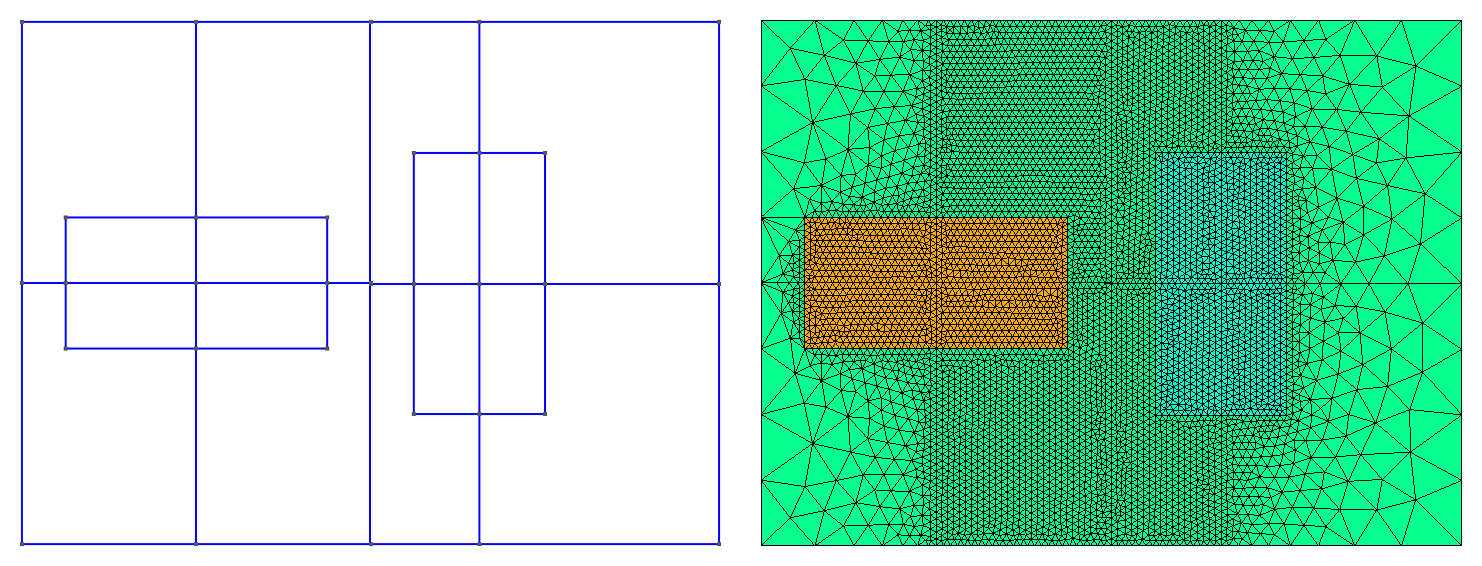
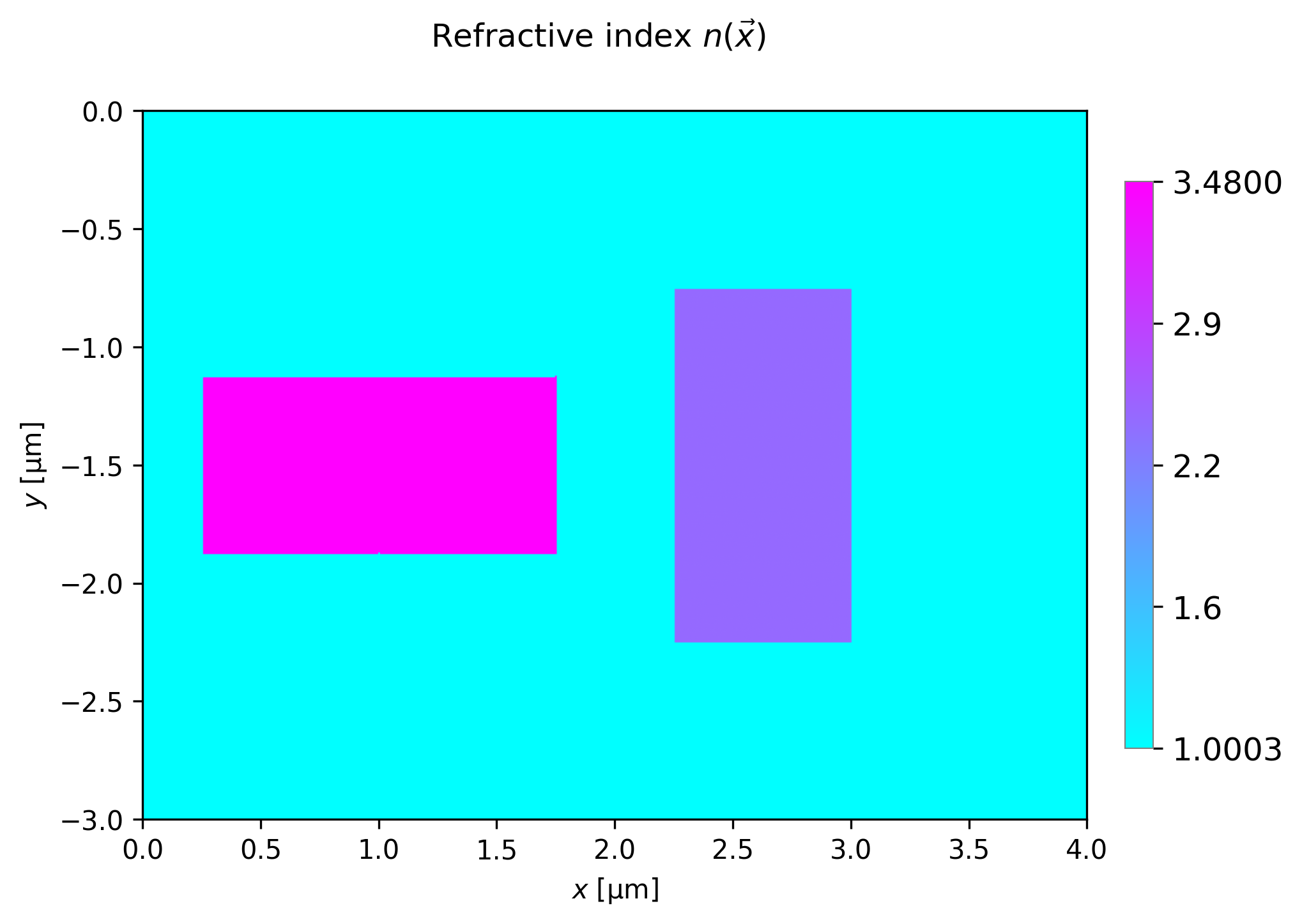
Coupled rectangular waveguides using shape rectangular (template twoincl_msh).
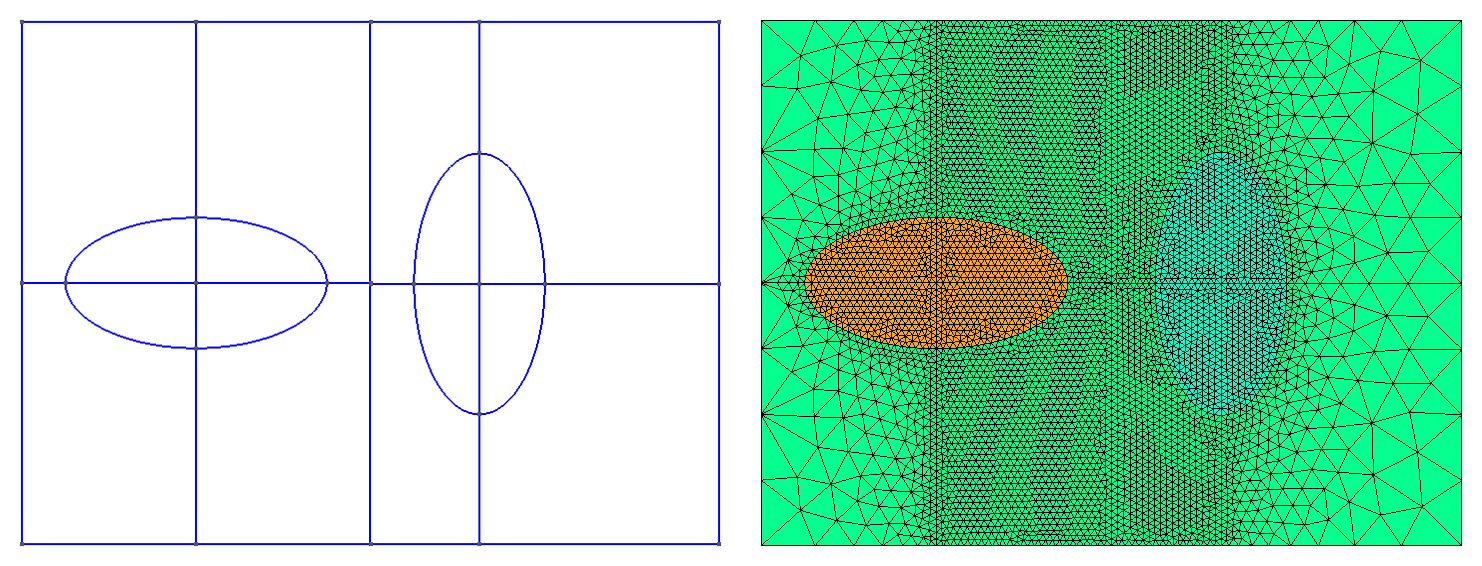
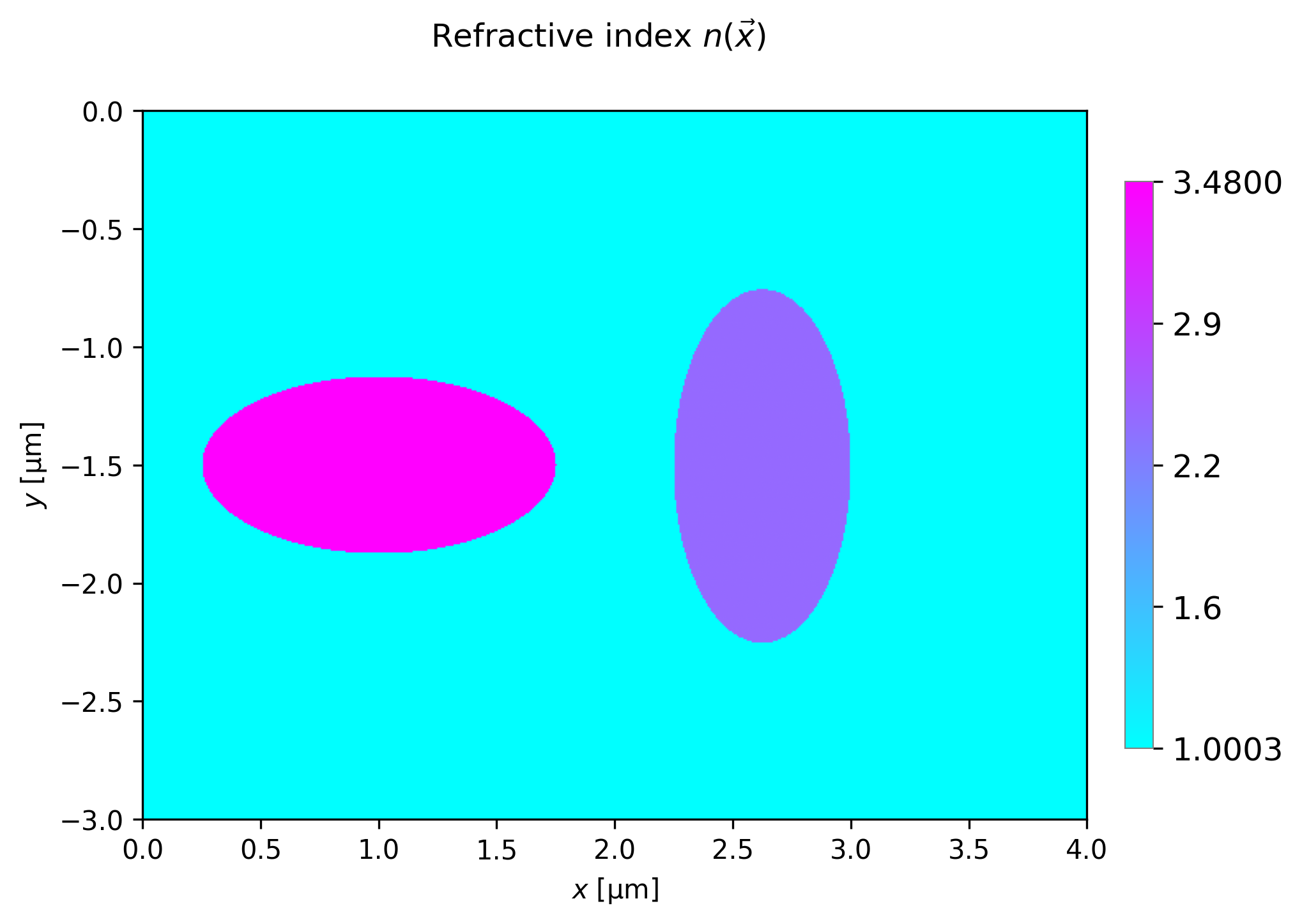
Coupled circular waveguides using shape circular (template twoincl_msh).
There appears to be a bug here!
6.2.3. Rib waveguides
These structures consist of a rib on one or more substrate layers with zero to two coating layers.
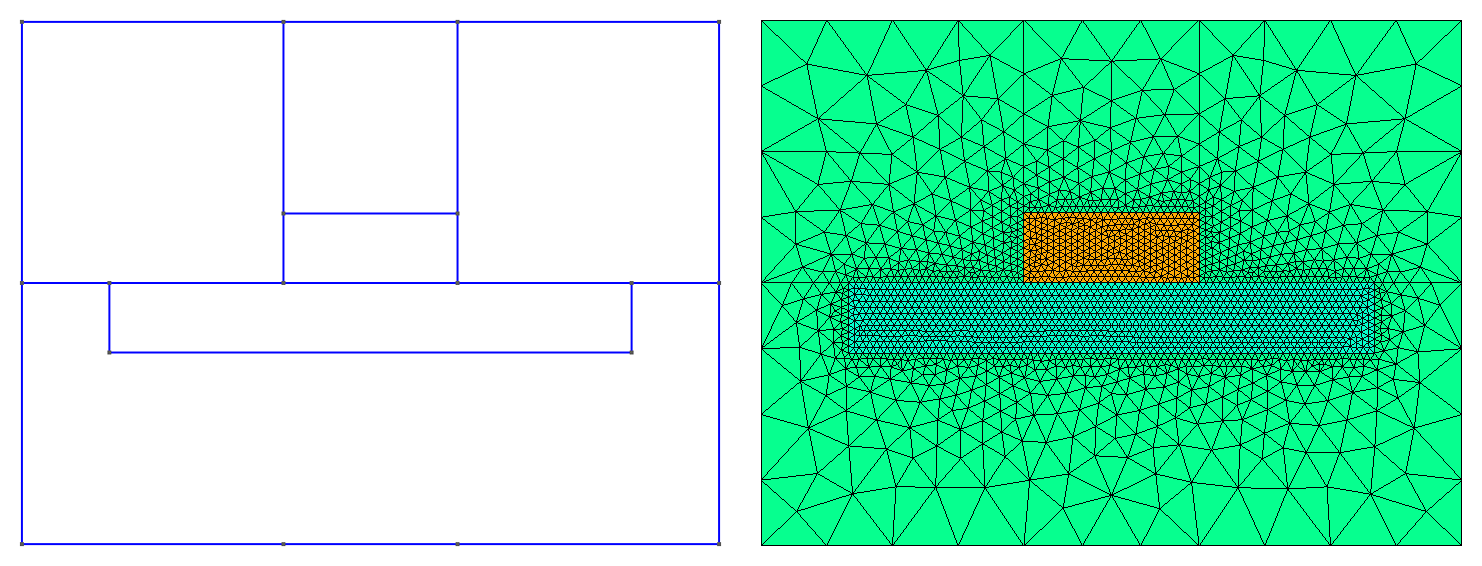
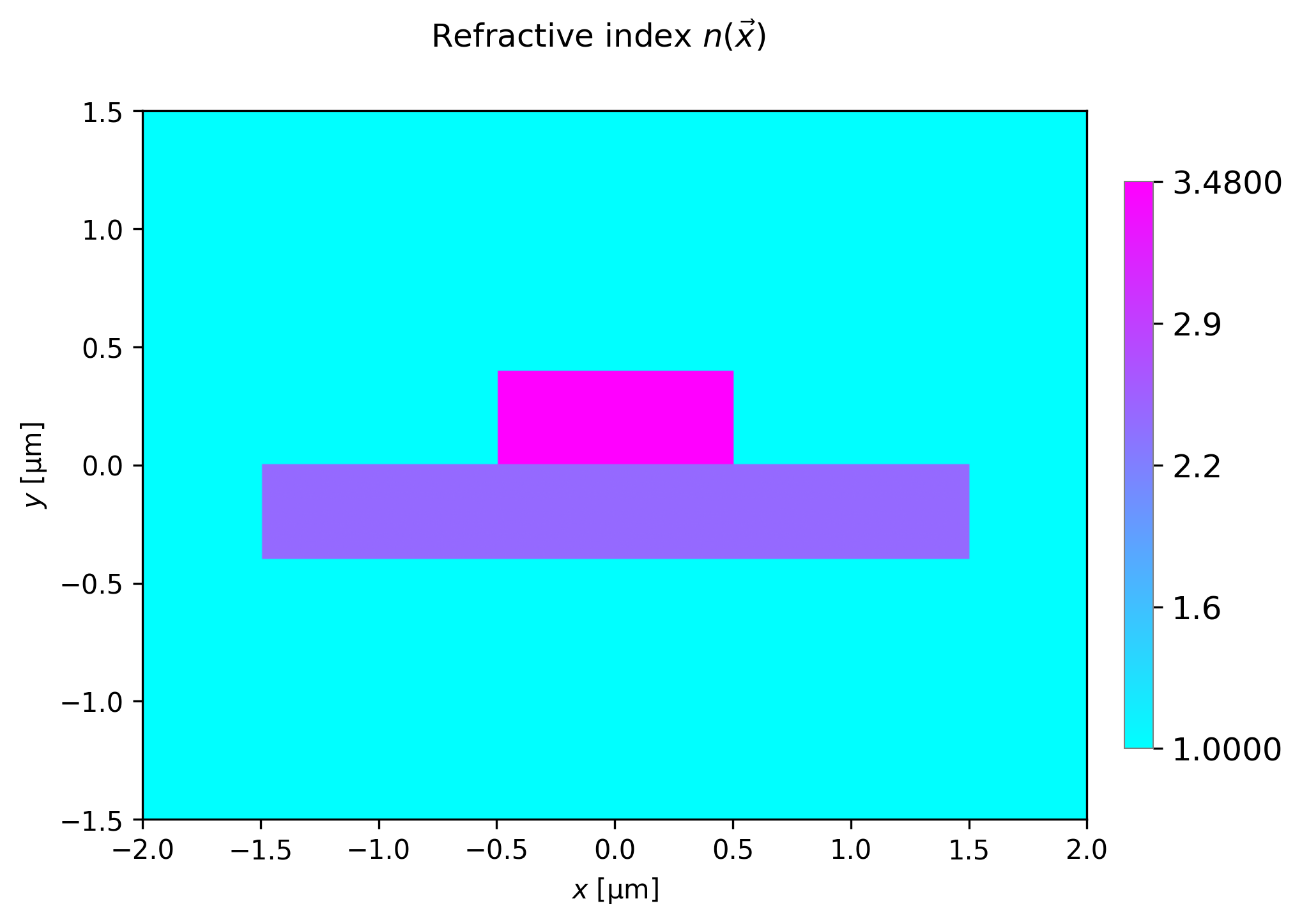
A conventional rib waveguide using shape rib (template rib).

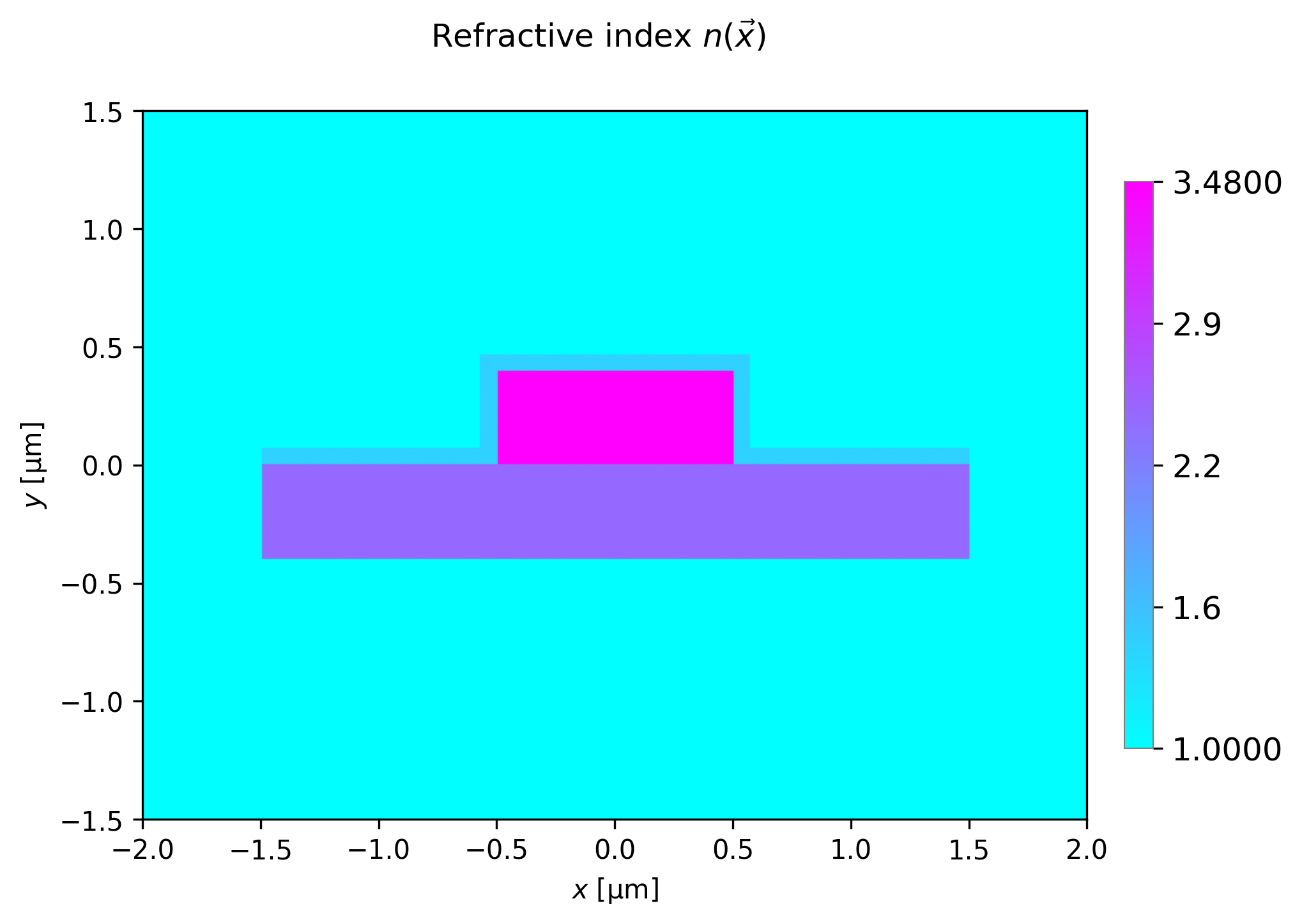
A coated rib waveguide using shape rib_coated (template rib_coated).
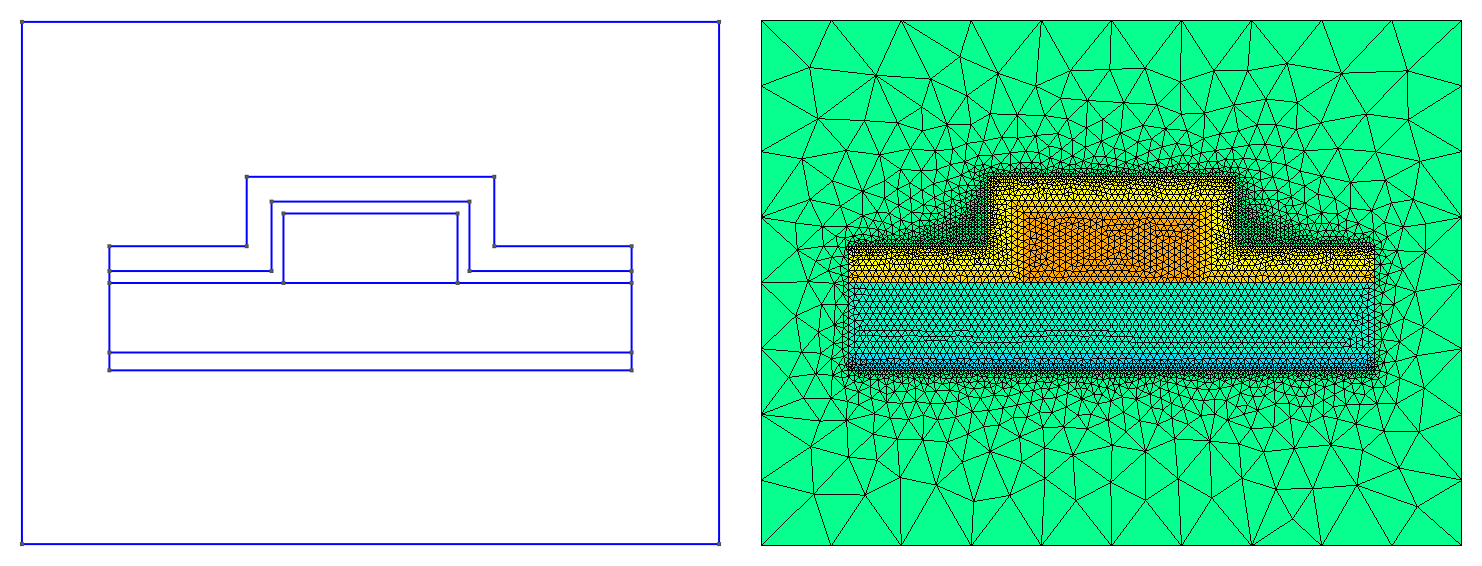
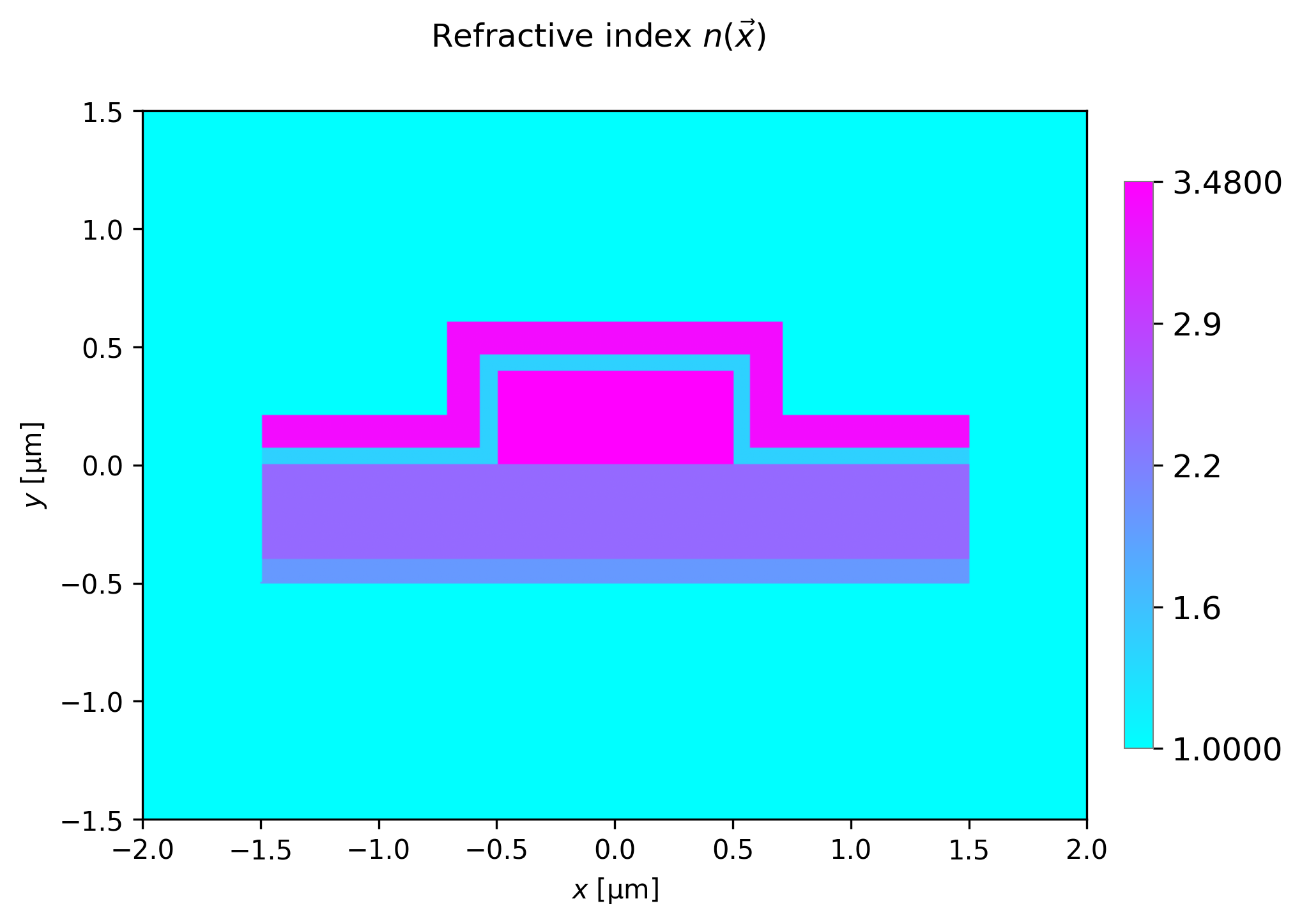
A rib waveguide on two substrates using shape rib_double_coated (template rib_double_coated).

6.2.4. Engineered rib waveguides
These are examples of more complex rib geometries. These are good examples to study in order to make new designs using the user-specified waveguide and mesh mechanism.
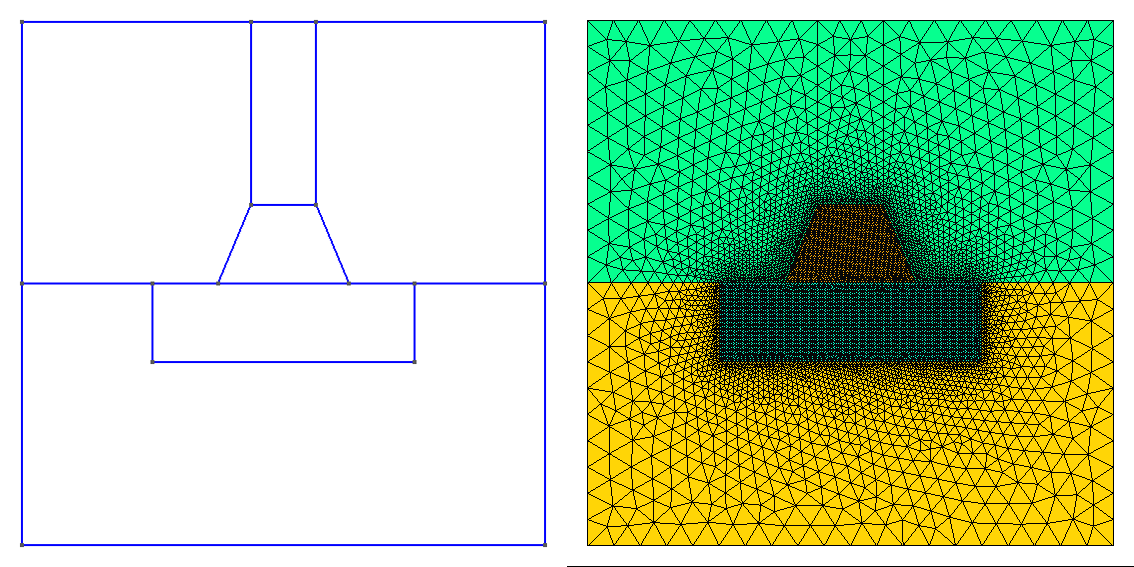
A trapezoidal rib structure using shape trapezoidal_rib.
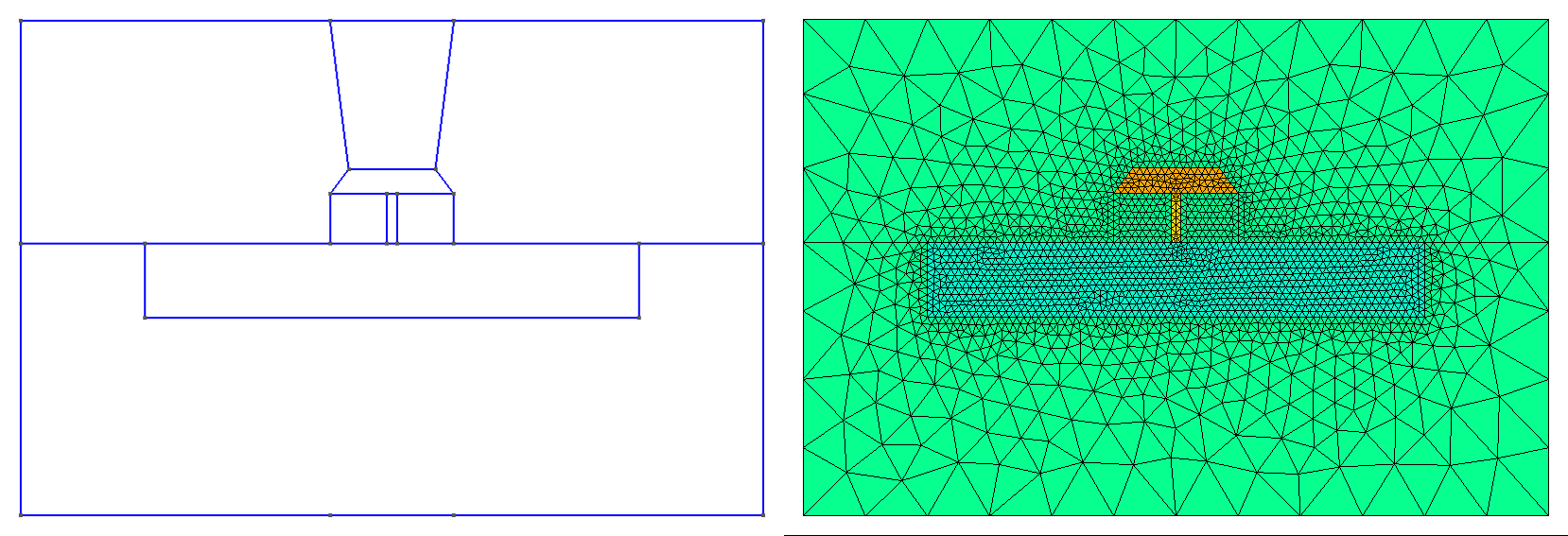
A supported pedestal structure using shape pedestal.
6.2.5. Slot waveguides
These slot waveguides can be used to enhance the horizontal component of the electric field in the low index region by the ‘slot’ effect.
A slot waveguide using shape
slot(material_ais low index) (templateslot).

A coated slot waveguide using shape slot_coated (material_a is low index) (template slot_coated).
6.2.6. Layered circular waveguides
These waveguides consist of a set of concentric circular rings of a desired
number of layers in either a square or circular outer domain.
Note that inc_a_x specifies the innermost diameter.
The subsequent parameters inc_b_x, inc_c_x, etc specify the annular thickness of each successive layer.
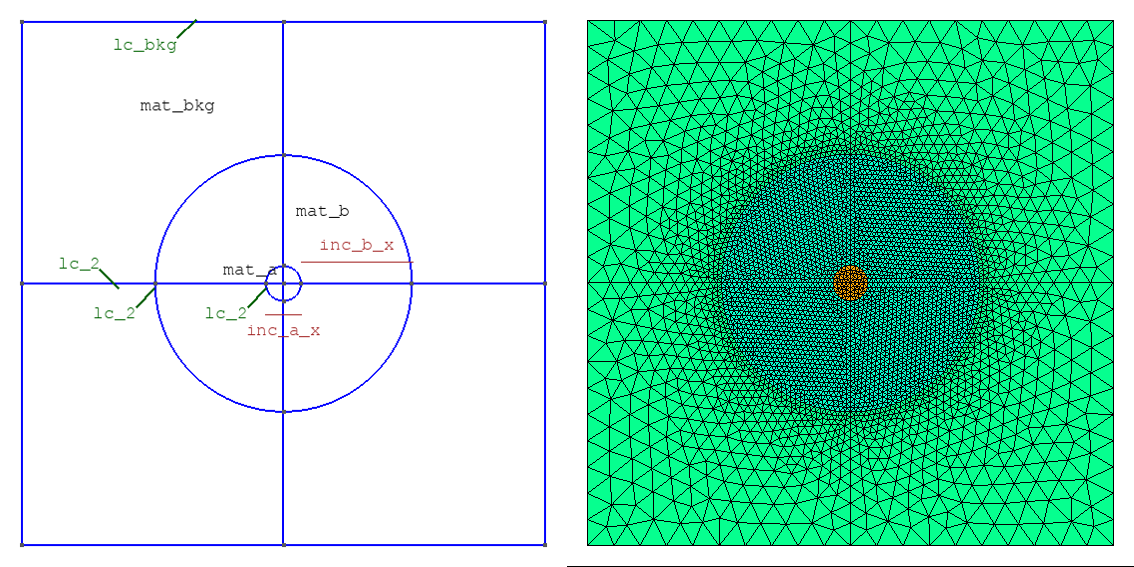
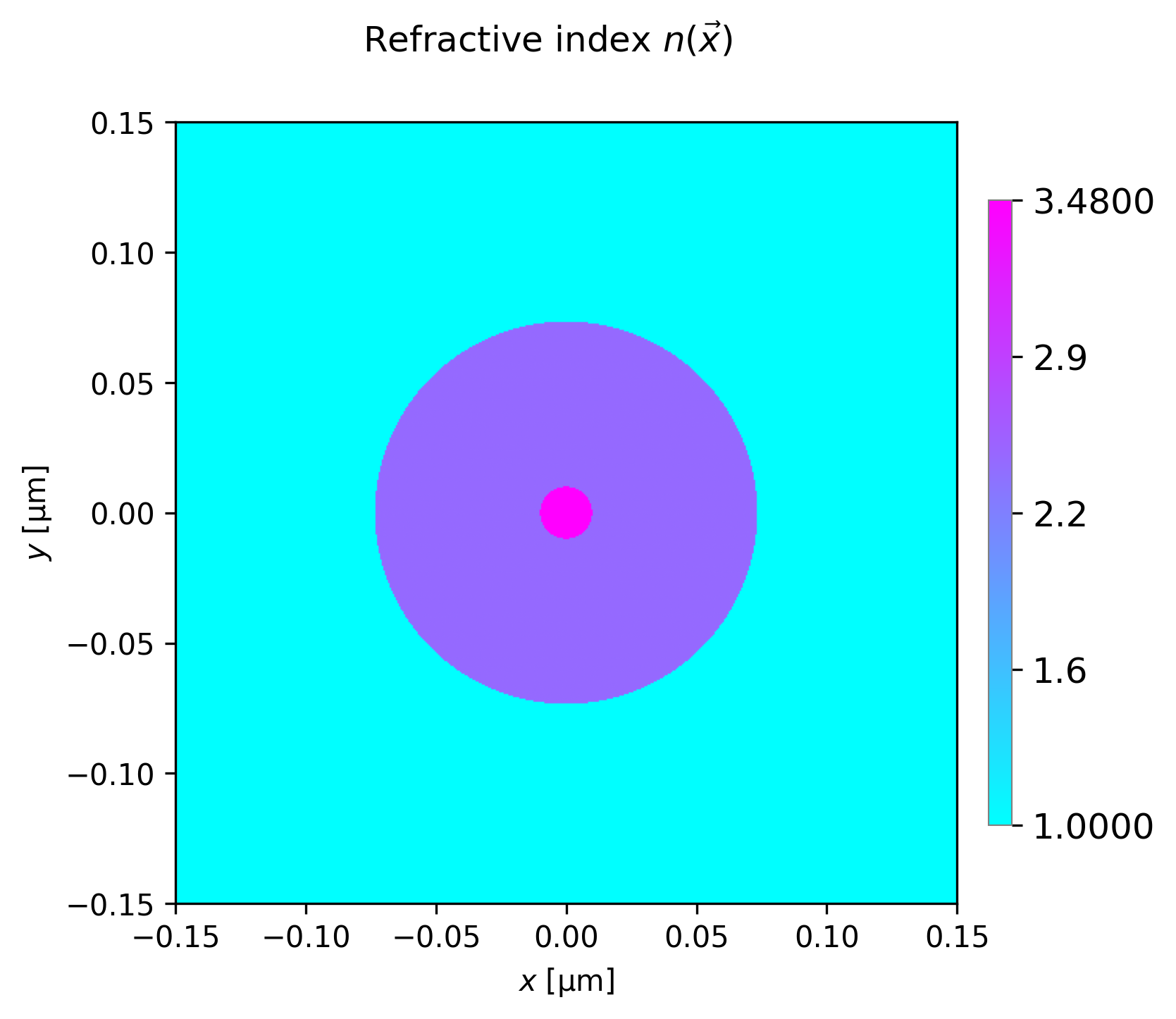
A two-layered concentric structure with background using shape onion2 (template onion2).
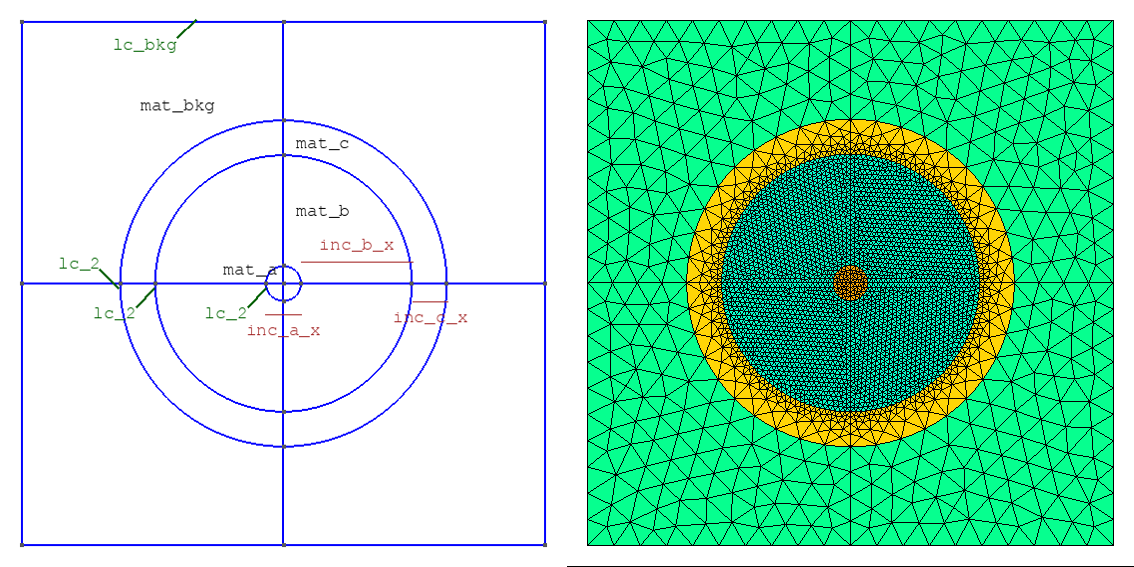
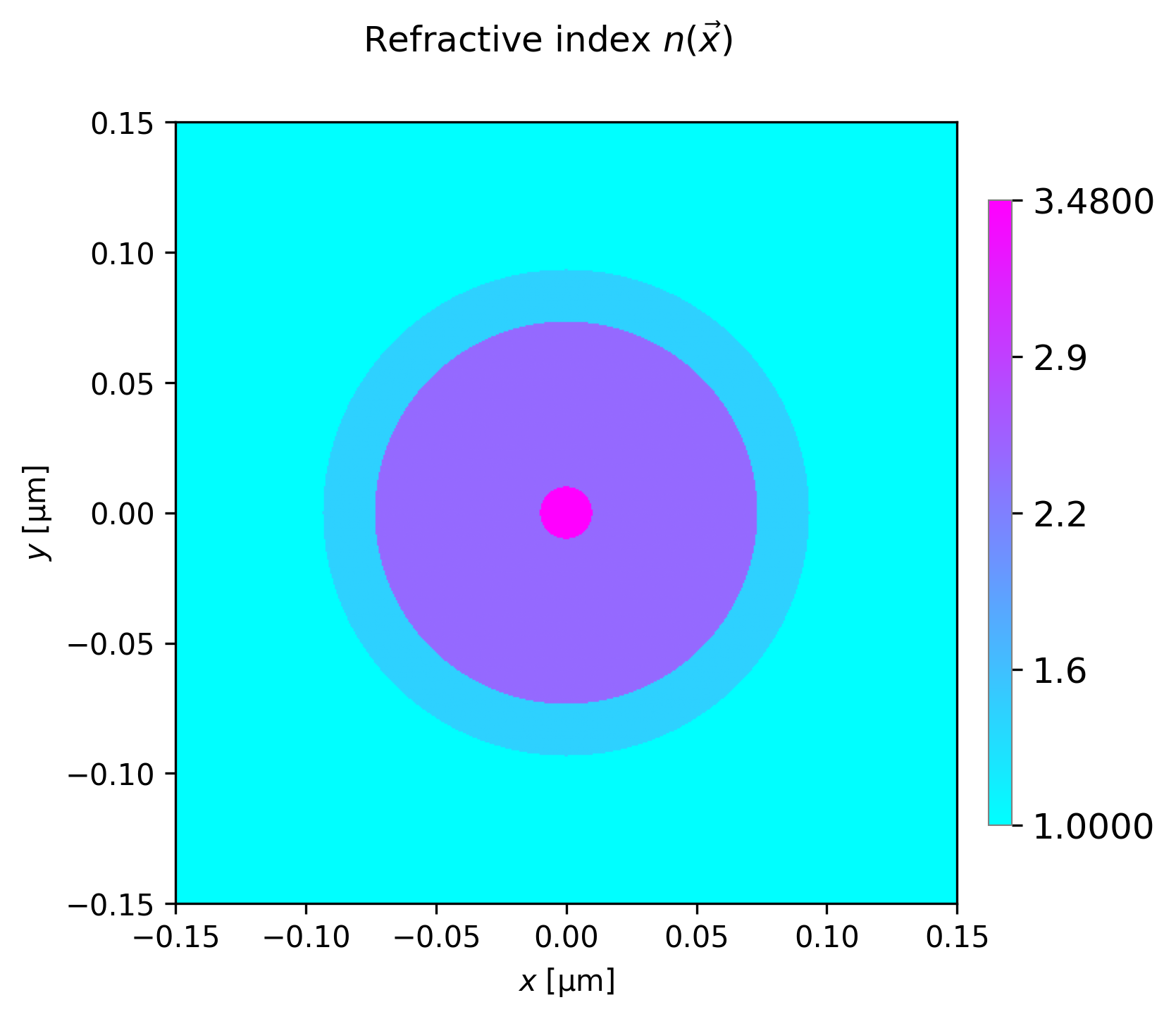
A three-layered concentric structure with background using shape onion3 (template onion3).
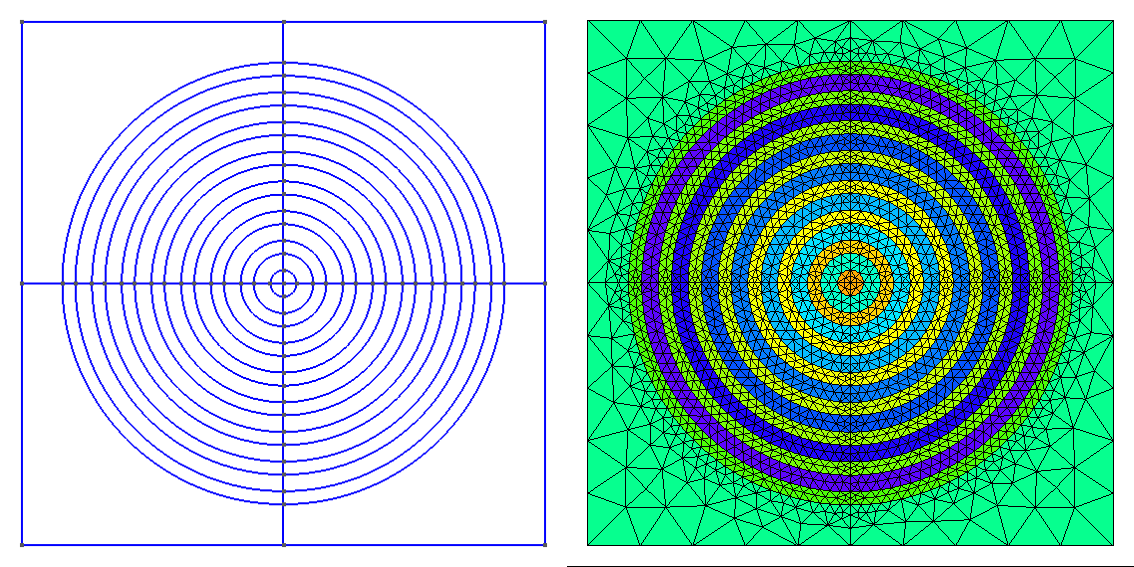
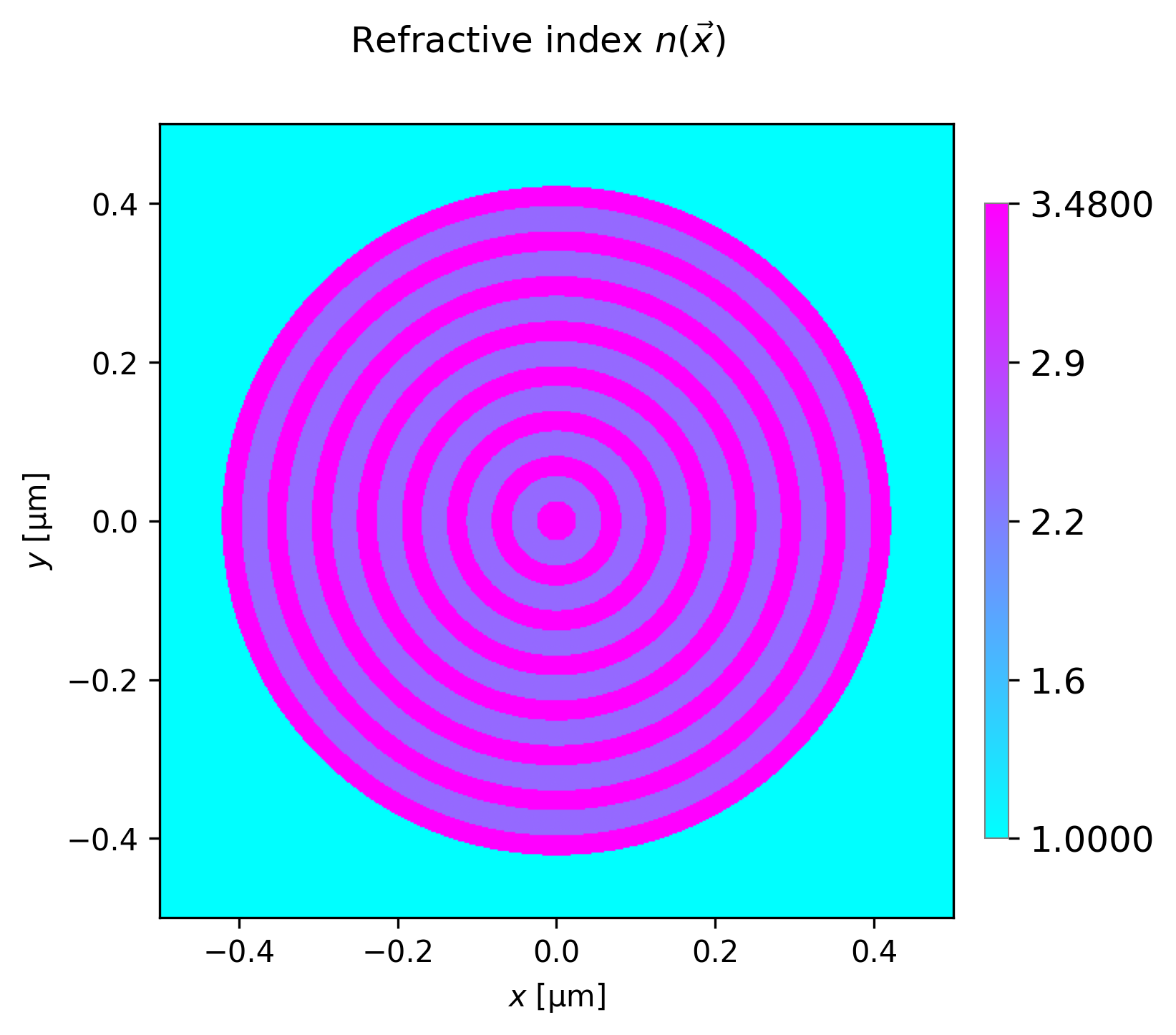
A many-layered concentric structure using shape onion (template onion).
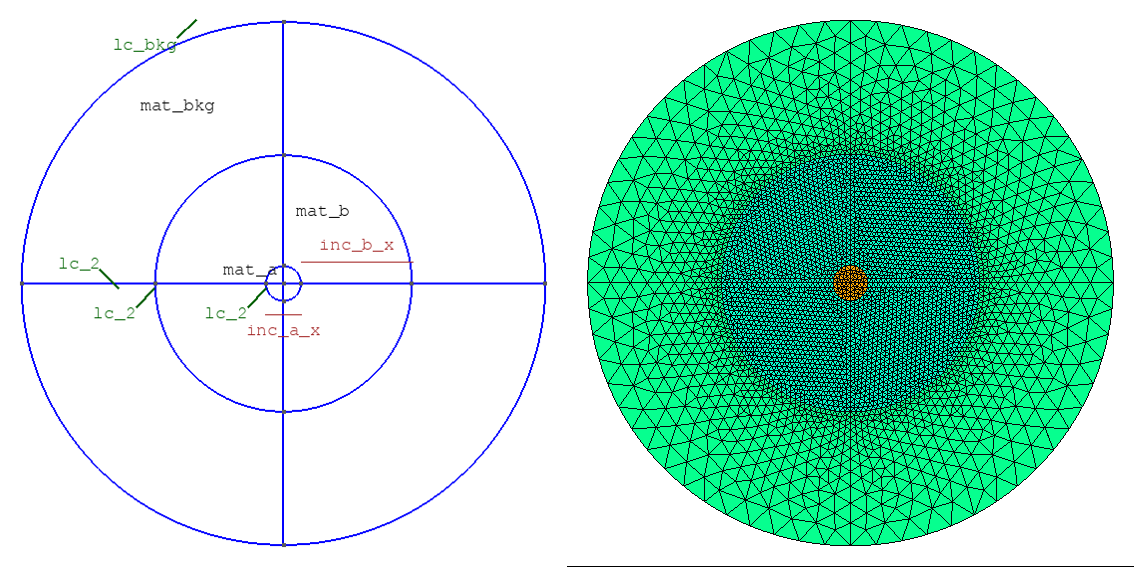
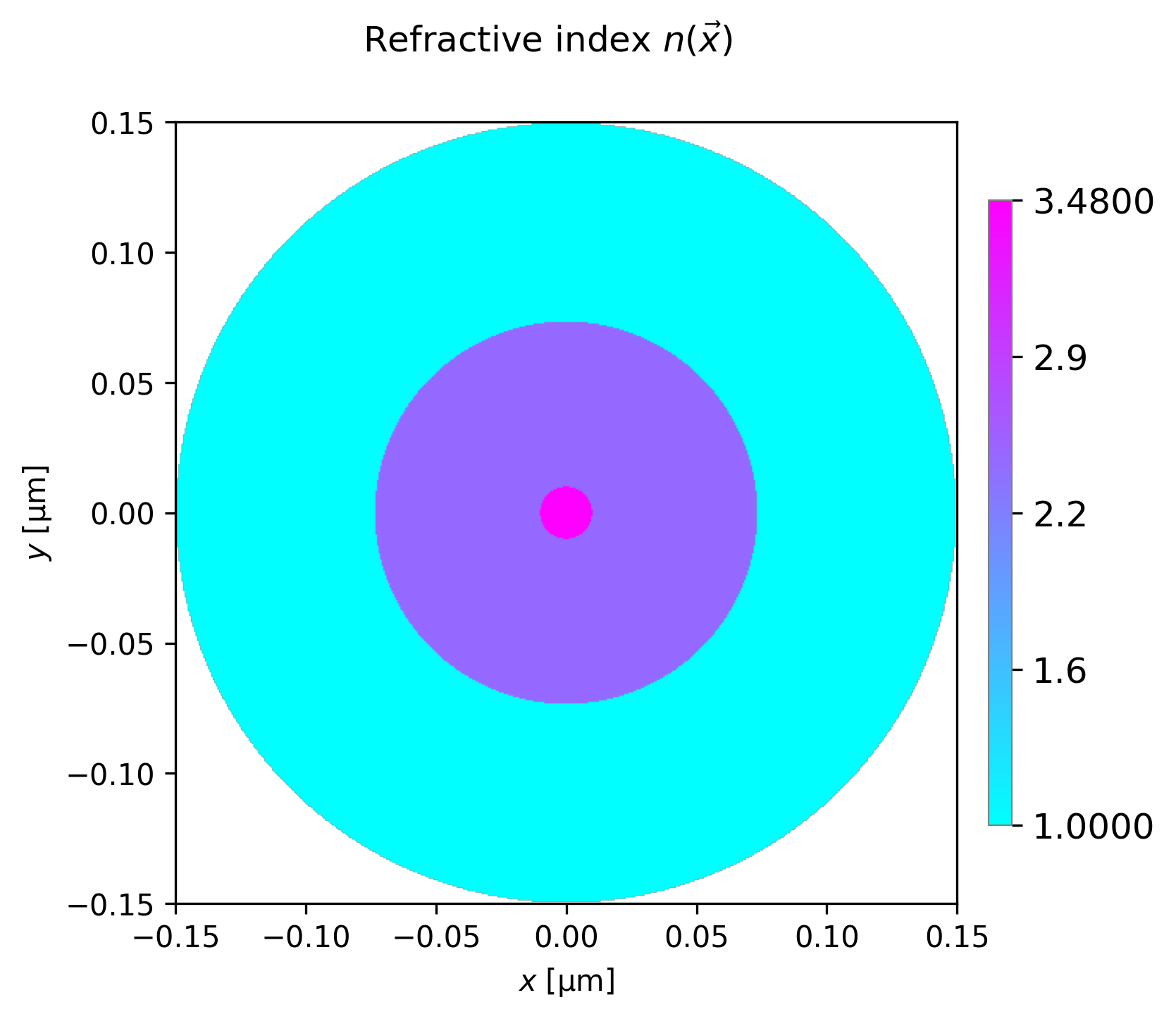
A two-layered concentric structure with a circular outer boundary using shape circ_onion2 (template circ_onion2).
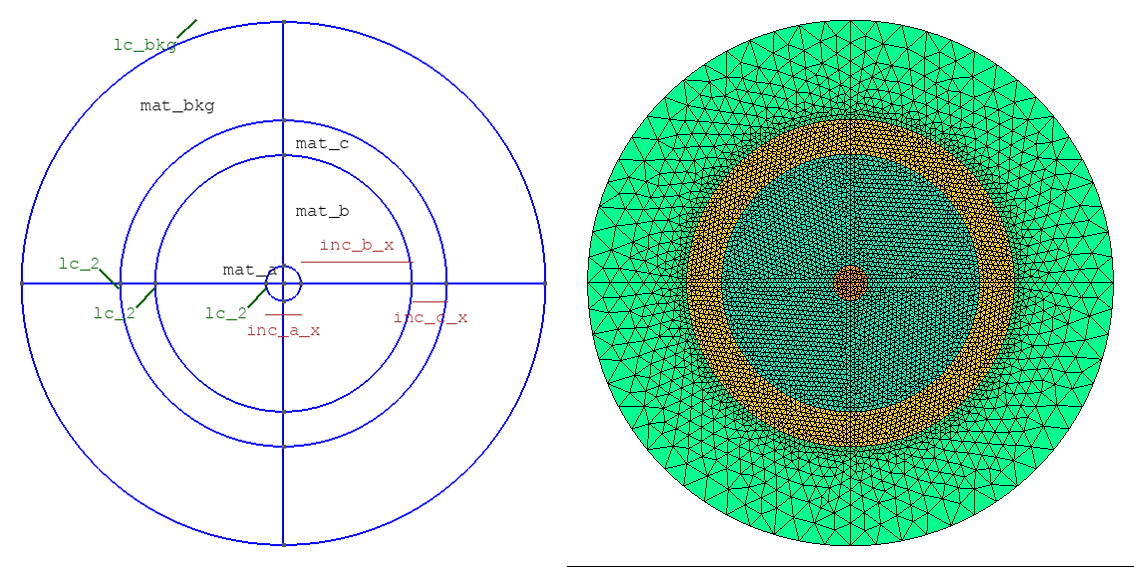
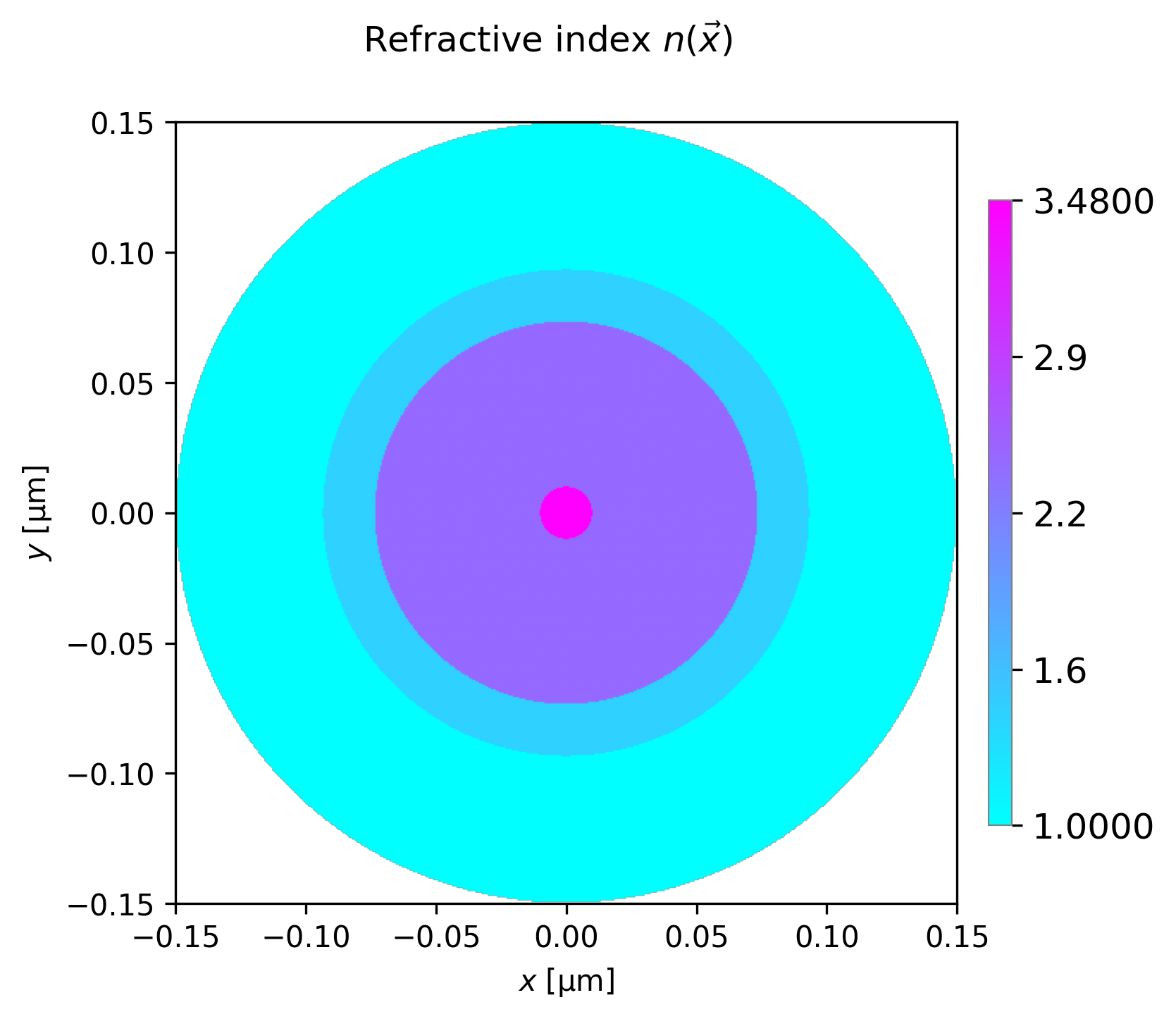
A three-layered concentric structure with a circular outer boundary using shape circ_onion3 (template circ_onion3).
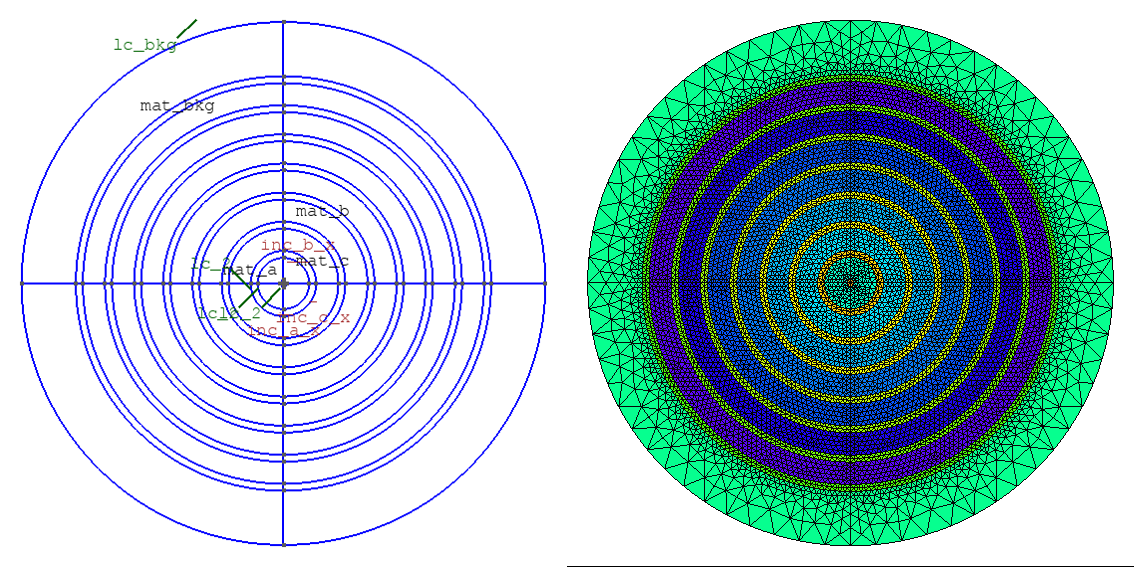
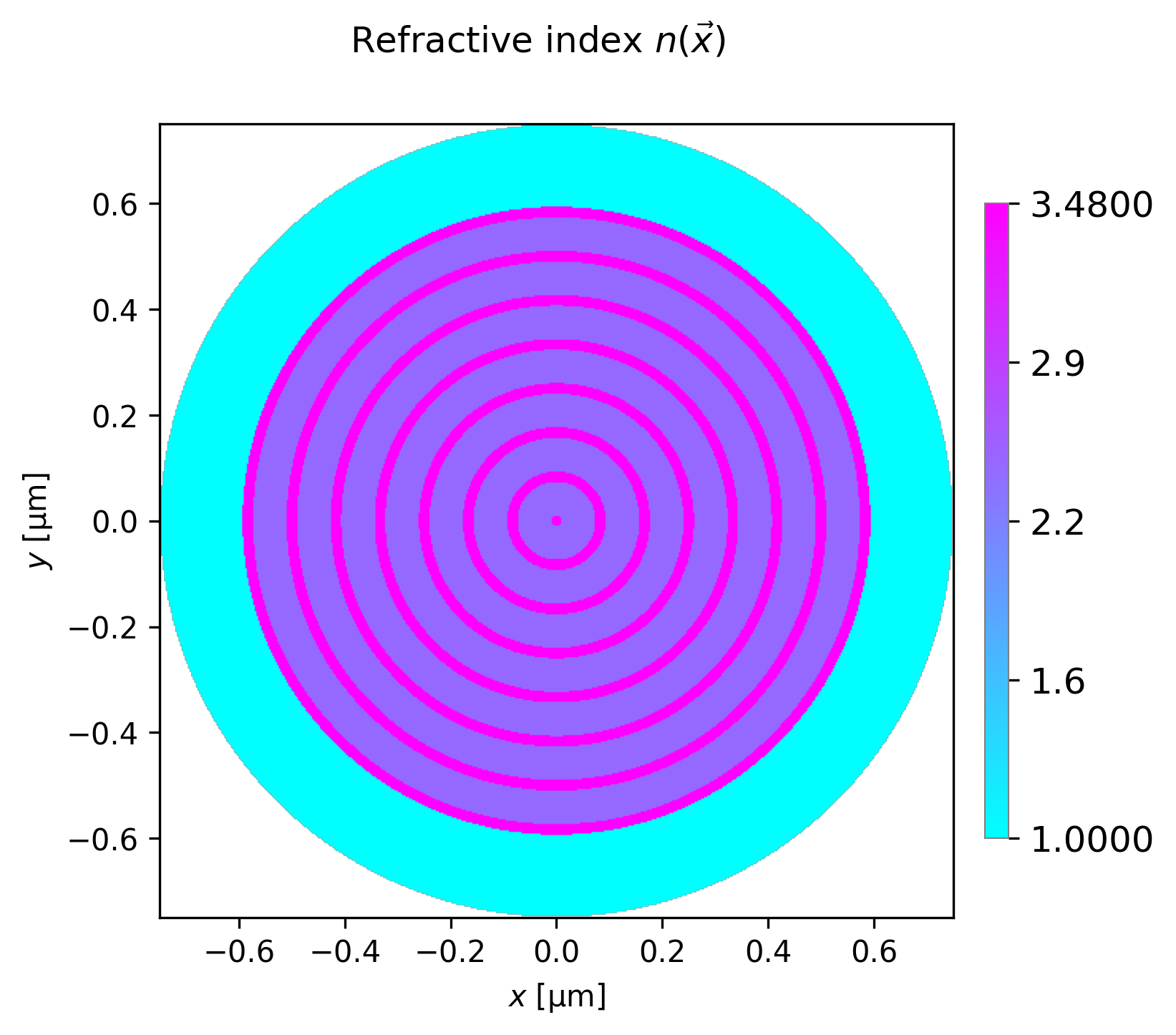
A many-layered concentric structure with a circular outer boundary using shape circ_onion (template circ_onion).
6.3. User-defined waveguide geometries
Users may incorporate their own waveguide designs fully into NumBAT with the following steps. The triangular built-in structure
is a helpful model to follow.
Create a new gmsh template
.geofile to be placed in<NumBAT>/backend/mshthat specifies the general structure. Start by looking at the structure oftriangular_msh_template.geoand some other files to get an idea of the general structure. We’ll suppose the file is calledmywaveguide_msh_template.geoand the template name is thusmywaveguide.When designing your template, please ensure the following:
That you use appropriate-sized parameters for all significant dimensions. This makes it easier to determine if the template structure has the right general shape, even though the precise dimensions will usually be changed through NumBAT calls.
That all
Lineelements are unique. In other words do not create twoLinestructure joining the same two points. This will produce designs that look correct, but lead to poorly formed meshes that will fail when NumBAT runs.That all
Line Loopelements defining a particular region are defined with the same handedness. The natural choice is to go around the loop anti-clockwise. Remember to include a minus sign for any line element that is traversed in the backwards sense.That all regions that define a single physical structure with a common material are grouped together as a single
Surfaceand thenPhysical Surface.That the outer boundary is grouped as a
Line Loopand then aPhysical Line.That the origin of coordinates is placed in a sensible position, such as a symmetry point close to where you expect the fundamental mode fields to be concentrated. This doesn’t actually affect NumBAT calculations but will produce more natural axis scales in output plots.
You can see all examples of these principles followed in the mesh structures supplied with NumBAT.
If this is your first, user-defined geometry, copy the file ‘’user_waveguides.json_template`` in
<NumBAT>/backend/msh/touser_waveguides.jsonin the same directory. This will ensure that subsequentgit pullcommands will not overwrite your work.Open the file
user_waveguides.jsonand add a new dictionary element for your new waveguide, copying the general format of the pre-defined example entries.Fill in values for the
wg_impl(the name of the python file implementing your waveguide geometry),wg_class(the name of the python class corresponding to your waveguide) andinc_shape(the waveguide template name) fields.
The value of
inc_shapewill normally be the your chosen template name, in this casemywaveguide. The other parameters can be chosen as you wish. It is natural to choose a class name which matches your template name, so perhapsMyWaveguide. However, depending on the number of geometries you create, it may be convenient to store all your classes in one python file so the filename forwg_implmay be the same for all your entries.The
activefield allows a waveguide to be disabled if it is not yet fully working and you wish to use other NumBAT models in the meantime. You must setactivetoTrueof 1 in order to test your waveguide model.Then save and close this file.
Open or create the python file you just specified in the
wg_implfield. This file must be placed in the<NumBAT>/backend/mshdirectory.
The python file must include the import line
from usermesh import UserGeometryBase.Create your waveguide class
MyWaveguideby subclassing theUserGeometryBaseclass and addinginit_geometryandapply_parametersmethods using theTriangularclass inbuiltin_meshes.pyas a model. Both methods must take onlyselfas arguments.The
init_geometrymethod specifies a few values including the name of the template.geofile, the number of distinct waveguide components and a short description.The
apply_parametersmethod is the mechanism for associating standard NumBAT symbols likeinc_a_x,slab_a_y, etc with actual dimensions in your.geofile. This is done by string substitution of unique expressions in your.geofile using float values evaluated from the NumBAT parameters. Again, look at the examples in theTriangularclass to see how this works.Optionally, you may also add a
draw_mpl_framemethod. This provides a mechanism to draw waveguide outlines onto mode profile images and will be called automatically any time an electromagnetic or elastic mode profile is generated. The built-in waveguidesCircular,RectangularandTwoInclprovide good models for this method.
Designing and implementing a few waveguide structure should not be a daunting task but some steps can be confusing the first time round. If you hit any hiccups or have suggestions for trouble-shooting, please let us know.
6.4. Mesh parameters
The parameters lc_bkg, lc_refine_1, lc_refine_2 labelled in the
above figures control the fineness of the FEM mesh and are set when
constructing the waveguide, as discussed in the next chapter. The first
parameter lc_bkg sets the reference background mesh size, typically as a
fraction of the length of the outer boundary edge. A larger lc_bkg yields
a coarser mesh. Reasonable starting values are lc_bkg=0.1 (10 mesh points
on the outer boundary) to lc_bkg=0.05 (20 mesh points on the outer
boundary).
As well as setting the overall mesh scale with lc_bkg, one can also refine
the mesh near interfaces and near select points in the domain, as may be
observed in the figures in the previous section. This helps to increase the
mesh resolution in regions where there the electromagnetic and acoustic fields
are likely to be strong and/or rapidly varying. This is achieved using the
lc_refine_n parameters as follows. At the interface between materials, the
mesh is refined to have characteristic length lc_bkg/lc_refine_1, therefore
a larger lc_refine_1 gives a finer mesh by a factor of lc_refine_1
at these interfaces. The meshing program Gmsh automatically adjusts the
mesh size to smoothly transition from a point that has one mesh parameter to
points that have other meshing parameters. The mesh is typically also refined
in the vicinity of important regions, such as in the center of a waveguide,
which is done with lc_refine_2, which analogously to lc_refine_1,
refines the mesh size at these points as lc_bkg/lc_refine_2.
For more complicated structures, there are additional lc_refine_<n>
parameters. To see their exact function, look for these expressions in the
particular .geo file.
Choosing appropriate values of lc_bkg, lc_refine_1, lc_refine_2 is
crucial for NumBAT to give accurate results. The appropriate values depend
strongly on the type of structure being studied, and so we strongly recommended
carrying out a convergence test before delving into new structures (see
Tutorial 5 for an example) starting from similar parameters as used in the
tutorial simulations.
As will as giving low accuracy, a structure with too coarse a mesh is often the
cause of the eigensolver failing to converge in which case NumBAT will
terminate with an error. If you encounter such an error, try the calculation
again with a slightly smaller value for lc_bkg, or slightly higher values
for the lc_refine_n parameters.
On the other hand, it is wise to begin with relatively coarse meshes. It will
be apparent that the number of elements scales roughly quadratically with
the lc_refine parameters and so the run-time increases rapidly as the mesh
becomes finer. For each problem, some initial experimentation to identify a
mesh resolution that gives reasonable convergence in acceptable simulation is
usually worthwhile.
6.5. Viewing the mesh
When NumBAT constructs a waveguide, the template geo file is converted to
a concrete instantiation with the lc_refine and geometric parameters
adjusted to the requested values. This file is then converted into a gmsh
.msh file. When exploring new structures and their convergence behaviour,
it is a very good idea to view the generated mesh frequently.
You can examine the resolution of your mesh by calling the
plot_mesh(<prefix>) or check_mesh() methods on a waveguide
Structure object. The first of these functions saves a pair of images of
the mesh to a <prefix>-mesh-annotated.png file in the local directory which can be
viewed with your preferred image viewer; the second opens the mesh in a
gmsh window (see Tutorial 1 above).
In addition, the .msh file generated by NumBAT in any calculation is
stored in <NumBAT>/backend/fortran/msh/build and can be viewed by running
the command
gmsh <msh_filename>.msh
In some error situations, NumBAT will explicitly suggest viewing the mesh and will print out the required command to do so.